Guide · Framing
How to make a split screen podcast clip with two people in one vertical frame
A split screen podcast clip keeps both hosts on screen when a 16:9 episode becomes a 9:16 clip for TikTok, Reels or Shorts. Cropping alone loses one of them. Here is the layout, the four rules behind it, the manual build, and the automatic way.
Stack the two people vertically. The person talking goes in the top half of the 9:16 frame, the person listening in the bottom half, each cropped tightly around the face. Captions sit on the seam between them. When one person carries a moment alone, drop the split and go to a single tight crop.
Do that by hand in CapCut or Premiere in about fifteen minutes per clip. Or paste the episode link into ClipPod and get every clip back already framed this way.
Try it on your episode, 60 free credits| Decision | What to do |
|---|---|
| Frame | 1080 by 1920, 9:16 |
| Split direction | Horizontal, one pane above the other |
| Speaker and listener | Speaker top, listener below, each cropped like a portrait |
| Captions | On the seam between the panes |
| Solo moment | Drop the split, single tight crop on the speaker |
| Three or more people | Three crops maximum, speaker on top |
| By hand | 10 to 15 minutes per clip in CapCut or Premiere |
| Automatic | Paste a link into ClipPod, 60 free credits at signup |
Why can't you just crop a 16:9 podcast to 9:16?
Because a 9:16 crop keeps less than a third of a 16:9 frame's width, and two hosts sit wider apart than that. A podcast camera records at 16:9, usually 1920 by 1080 pixels, while a vertical podcast clip is 9:16, usually 1080 by 1920. Keep the full height of the source and you can keep only 607 of the 1920 pixels across. That is 31.6 percent of the width.
Two hosts on a couch or across a desk occupy roughly the middle 60 to 70 percent of a wide shot. A centered crop keeps the gap between them and cuts both faces in half. A crop on either host drops the other. The two usual workarounds both cost something:
- Fit the whole wide shot inside the phone frame with blurred bars above and below. Both faces survive, but the picture shrinks to a 1080 by 608 strip and faces that were 150 pixels tall become about 85. That is a thumbnail of two people, not a clip of a conversation.
- Cut to whoever is talking with a single tight crop and swap on every speaker change. It works for interviews with long turns. On a show with real back-and-forth it becomes a slideshow of jump cuts, and the viewer never sees the reaction, which is often the funny part.
What is the best layout for a two-person vertical podcast clip?
A horizontal split: the speaker in the top half, the listener in the bottom half, each cropped like a portrait, with the captions on the seam between them. That is the layout that puts two people in vertical video at a size where their faces still read. Here is the moment it happens:
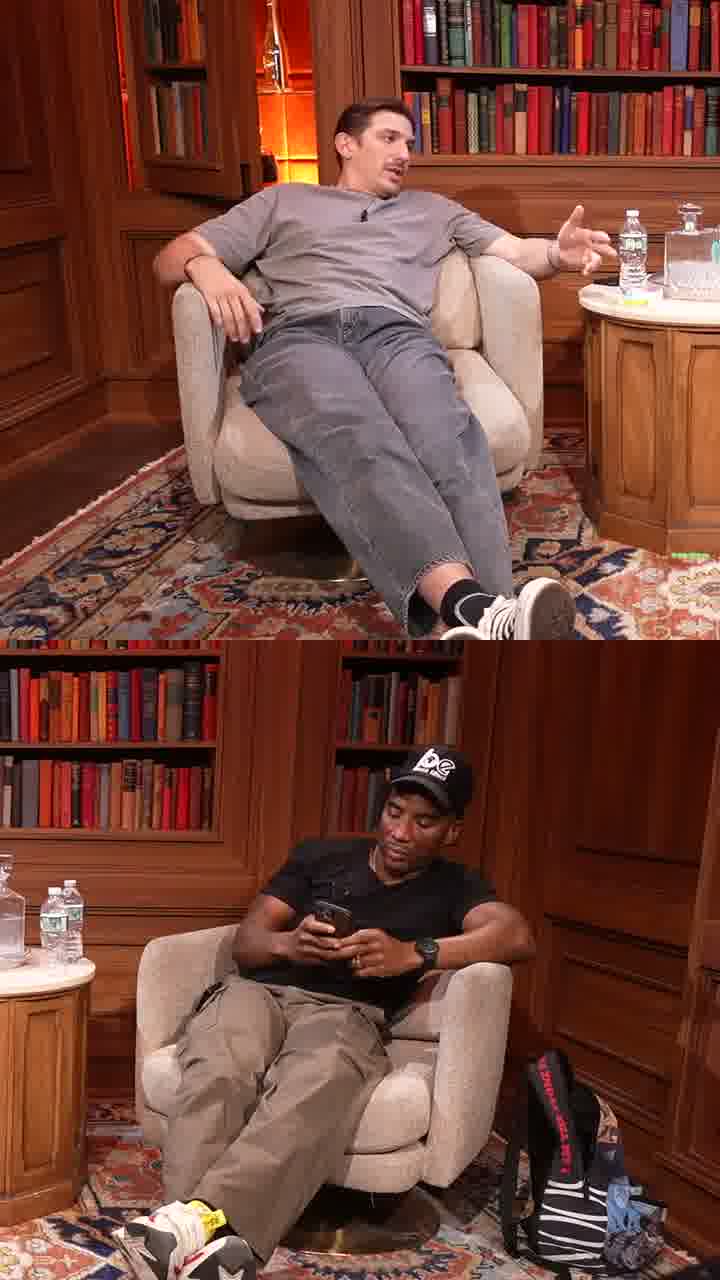
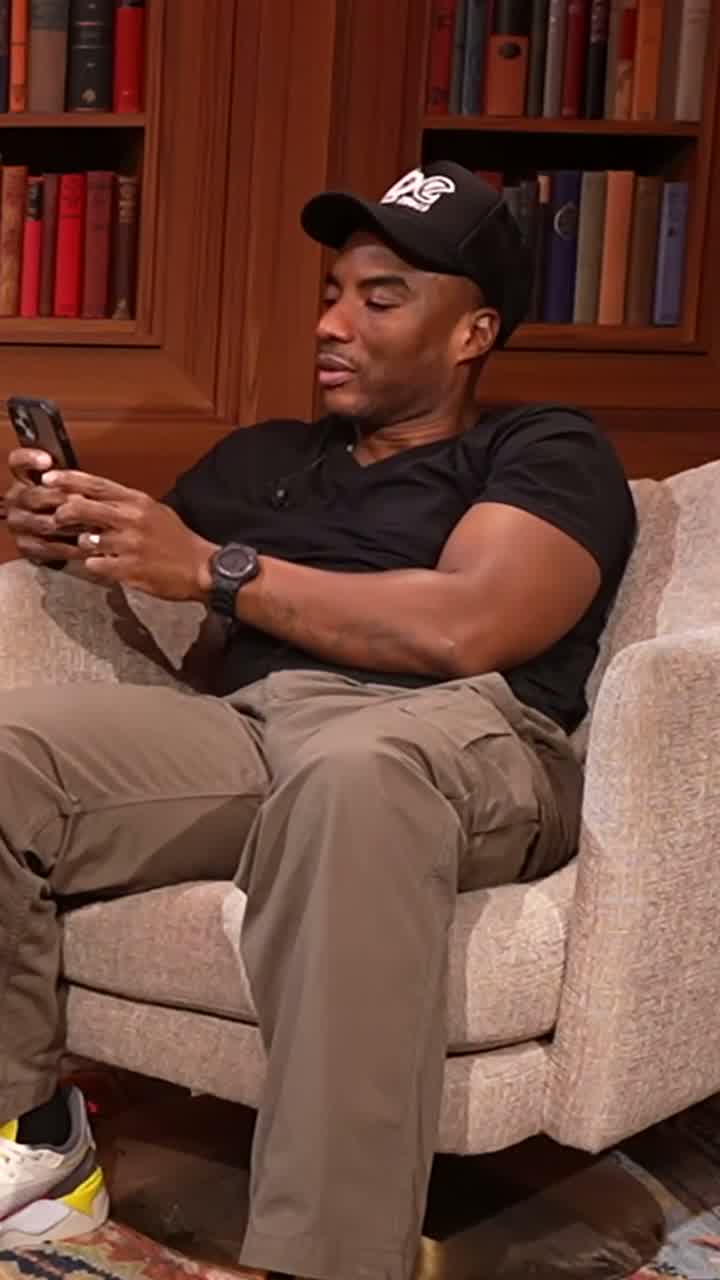
Each pane of a 1080 by 1920 stack is 1080 by 960, close to a 9:8 square: head, shoulders, a little headroom. Both people get the full width of the phone at a size where expressions read. The seam between the panes is the one strip that is empty and inside every platform's safe zone, so that is where the captions go.
Four rules for two-speaker vertical podcast clips
- The speaker goes on top. The eye lands on the top of the frame first. On TikTok and Shorts the bottom is also where the caption text, the sound name and the like column live. The person talking gets the clean half.
- Crop each pane like a portrait, not like half of a landscape. Stacking the left half and the right half of the wide shot keeps the empty room and makes both people small. Crop each pane around the face with the shoulders in, the way a portrait photographer would.
- Keep the layout stable, move the crop. When the other person starts talking, do not flip the panes. The whole screen jumping is the fastest way to make a viewer swipe. Keep each person in their pane and let who is talking carry the emphasis. If a moment is really a monologue, switch to a single crop and stay there, a handful of times per clip at most.
- Captions sit on the seam. The bottom third of a split screen clip is the listener's face, and it is also the band the platforms cover with their own interface. The seam is the one place that is both empty and safe.
How do you split screen a podcast with three or more people?
Give the speaker the top pane alone and put the listeners in the bottom pane, with a hard limit of three crops. The listeners share the bottom pane if they sit close enough for one crop to hold all of them at a readable size. If they do not, the bottom pane splits left and right, one column per listener or one column per pair. Four separate panes turn every face into a postage stamp, and that is where the format breaks.
It also solves the speaker sitting in the middle of a three-shot: instead of a wide crop that has to keep both neighbours in, the speaker gets a clean top pane.
How do you make a split screen video in CapCut or Premiere?
Stack two copies of the same clip in a 1080 by 1920 project, crop each around one face, and keyframe the crops as people move. Seven steps:
- Set the project to 1080 by 1920.
- Add the source clip twice, one copy on each track.
- Scale the top copy to around 180 percent and position it so the speaker's face sits in the upper half with a little headroom. Mask or crop the lower half away.
- Do the same with the second copy for the listener, positioned in the lower half.
- Add captions and drag them to the seam. Turn off any auto-position that pins them to the bottom.
- Scrub through the clip. Every time a person leans or shifts, adjust that pane's position with a keyframe so the face stays centered.
- For a solo stretch, cut both tracks, add a single scaled copy, and crop it tight.
Budget ten to fifteen minutes per clip once you are practiced. Five clips an episode is about an hour of framing before captions and titles.
How do you make split screen podcast clips automatically?
Use a clip maker that knows who is talking at each second and auto reframes each speaker from that. ClipPod does it from a pasted YouTube link, and ClipPod is ours, we make it. It listens to the episode and works out which voice belongs to which face on screen.
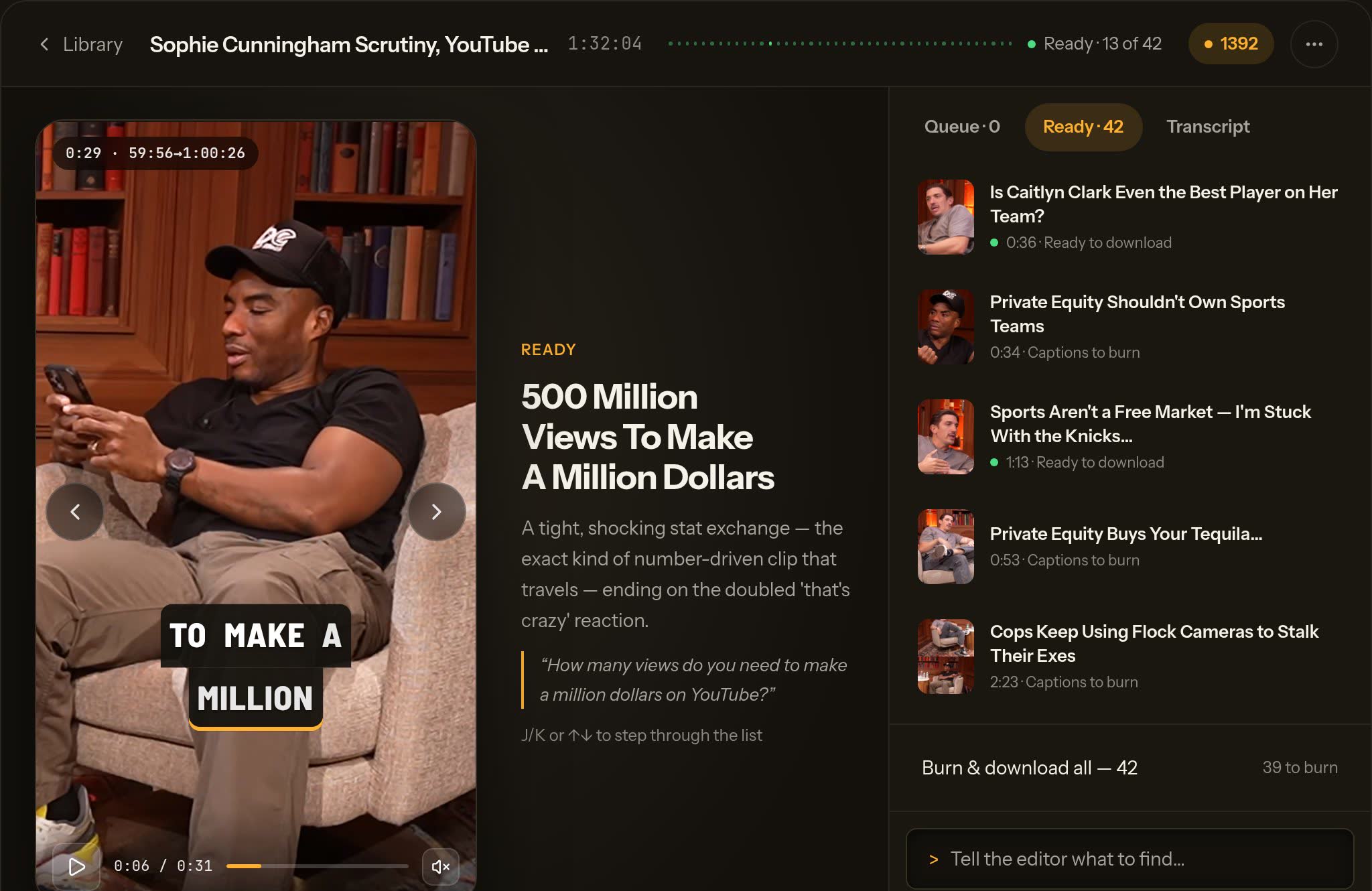
- Paste the YouTube link or upload the file. The 92-minute episode the frames above come from returned its first clips 13 minutes after the paste, 42 clips in all.
- The moments are picked for you, each with the reason it was chosen, so you can judge the selection at a glance.
- When a second voice lands, the frame splits into the layout above: speaker top, listener below. Solo moments stay tight on the speaker.
- Captions land on the seam by default, word-timed, in a style you can change per clip.
- Every clip found is included, downloads free and unlimited. Pricing is one credit per minute of the episode, from $12 a month on the Starter plan. Per episode, the maths is in what one episode costs on each clip tool.
Check your source resolution either way. A 1080p wide shot of three people gives each pane a crop roughly 370 pixels wide, scaled up about three times: fine on a phone, soft on a monitor. Record at 4K and the stacked crops stay sharp.
By hand or automatic: which should you choose?
- If you post one or two clips a week and already own CapCut or Premiere, build them by hand. Fifteen minutes a clip is cheaper than a subscription.
- If you post five clips an episode, that is an hour of framing. Paste the link into ClipPod instead and spend the hour on titles.
- If your hosts talk over each other, go automatic. Keyframing a pane on every interruption is the slowest part by hand.
- If you record inside Riverside, its auto-layouts already change with who is speaking for those recordings. For a YouTube link you need a link clipper.
- If you are still comparing tools, read the best podcast clip makers guide, then check what each plan gives you per month.
Common mistakes in two-person vertical clips
- Stacking the left and right halves of the wide shot. Both people end up small with the room around them. Crop around each face instead.
- Flipping the panes on every speaker change. The screen jumps and the viewer swipes. Keep each person in their pane.
- Captions at the bottom. They cover the listener's face and sit under the platform's own interface. Put them on the seam.
- A side-by-side split. Each person gets 540 pixels of width and faces shrink to fit. Split top and bottom.
- Four or more panes. Faces become postage stamps. Cap it at three crops.
- Cropping a 1080p wide shot too tight. Each pane scales up about three times and goes soft on a monitor. Record at 4K where you can.
Split screen podcast clip FAQ
- Should a split screen podcast clip be split horizontally or vertically?
- Horizontally, one pane above the other. A side-by-side split in a 9:16 frame gives each person a 540-pixel-wide sliver and faces have to shrink to fit. The stack gives each person the full width of the phone, which is why the speaker goes on top and the listener below.
- What size is each pane in a 1080 by 1920 split screen clip?
- Each pane of a stacked frame is 1080 by 960 pixels, close to a 9:8 square, which is a comfortable head-and-shoulders portrait crop. Cropping a 1080p wide shot to that size scales the face up around three times, so a 4K source keeps it sharp.
Layout Pane size in a 1080 by 1920 frame Speaker and listener stacked 1080 by 960 each, close to 9:8 Side by side 540 pixels wide each, too narrow for faces - How do you keep both hosts in frame when converting a podcast to vertical video?
- Crop the wide shot twice, once around each face, and stack the two crops in the 9:16 frame. Do not shrink the whole wide shot to fit: a 1080 by 608 strip makes both faces too small to read on a phone. Record at 4K where you can, so each crop keeps enough pixels.
- Where is the safe zone for captions on TikTok, Reels and Shorts?
- Keep faces and captions out of the bottom fifth of the frame and away from the right edge, where the like, comment and share column sits. The seam of a stacked frame is inside the safe area on every major platform, which is why captions belong there rather than at the bottom.
- How do you split a two-camera podcast recording?
- Give each camera its own pane. The speaker's camera goes on top and the listener's below, so each face is already large without a heavy crop and there is less scaling. Speaker on top, stable panes and captions on the seam all still apply.
- How often should a split screen clip switch between speaker and listener?
- As rarely as the conversation allows. A change every few seconds reads as chaos. A change when the moment genuinely changes shape, a monologue giving way to a back-and-forth, reads as editing. Move the crop inside a pane freely, but change the layout itself only a handful of times per clip.
- What about a face-and-screen split, like a host reacting to a video?
- Same rule. The host who is talking goes on top, the content goes in the bottom pane, and the captions sit on the seam between them. Keep the two panes in the same places for the whole clip so the viewer's eye does not have to reset.
- Which podcast clip maker does split screen automatically?
- ClipPod splits automatically whenever a second voice lands, based on who is speaking. The rest of the field is mixed, and several tools do not name a two-speaker layout at all. The full comparison is in the best podcast clip makers guide.
Tool Two-speaker split screen ClipPod (we make it) Splits automatically when a second voice lands, speaker top, listener below, from a pasted link Riverside Auto-layouts change with who is speaking, for recordings made inside Riverside Klap Split Screen offered as a selectable layout in AI Reframe 2; automation not confirmed Vizard Tracks each person separately; no split layout named OpusClip, Quso, Submagic Two-speaker layout not stated on their sites
Get the split without opening an editor
- Paste a YouTube link; when a second voice lands, the frame splits, speaker top and listener below
- Captions land on the seam by default, word-timed, restyle any clip
- 60 free credits at signup, enough for one hour-long episode, no card needed
Plans from $12 a month, one credit per minute of the episode, every clip found included. See what each plan costs per episode.
Sources
- Footage: Brilliant Idiots, "Sophie Cunningham Scrutiny, YouTube Handing Out the Bag + WNBA is LIT", youtube.com/watch?v=EIl0lTMdVq4, CC BY 4.0. Kaitlyn Clark exchange at 488.2–524.7 s.
- Turnaround: that 92-minute episode (5,525 s) returned its first clips 777 s after the paste, 42 clips found.
- ClipPod plans, credits and free tier: clippod.app/pricing and the terms page, checked 7 September 2026.
- Competitor layout claims: riverside.com, klap.app/pricing, vizard.ai/pricing, opus.pro/pricing, quso.ai/pricing and submagic.co/pricing, checked 7 September 2026.